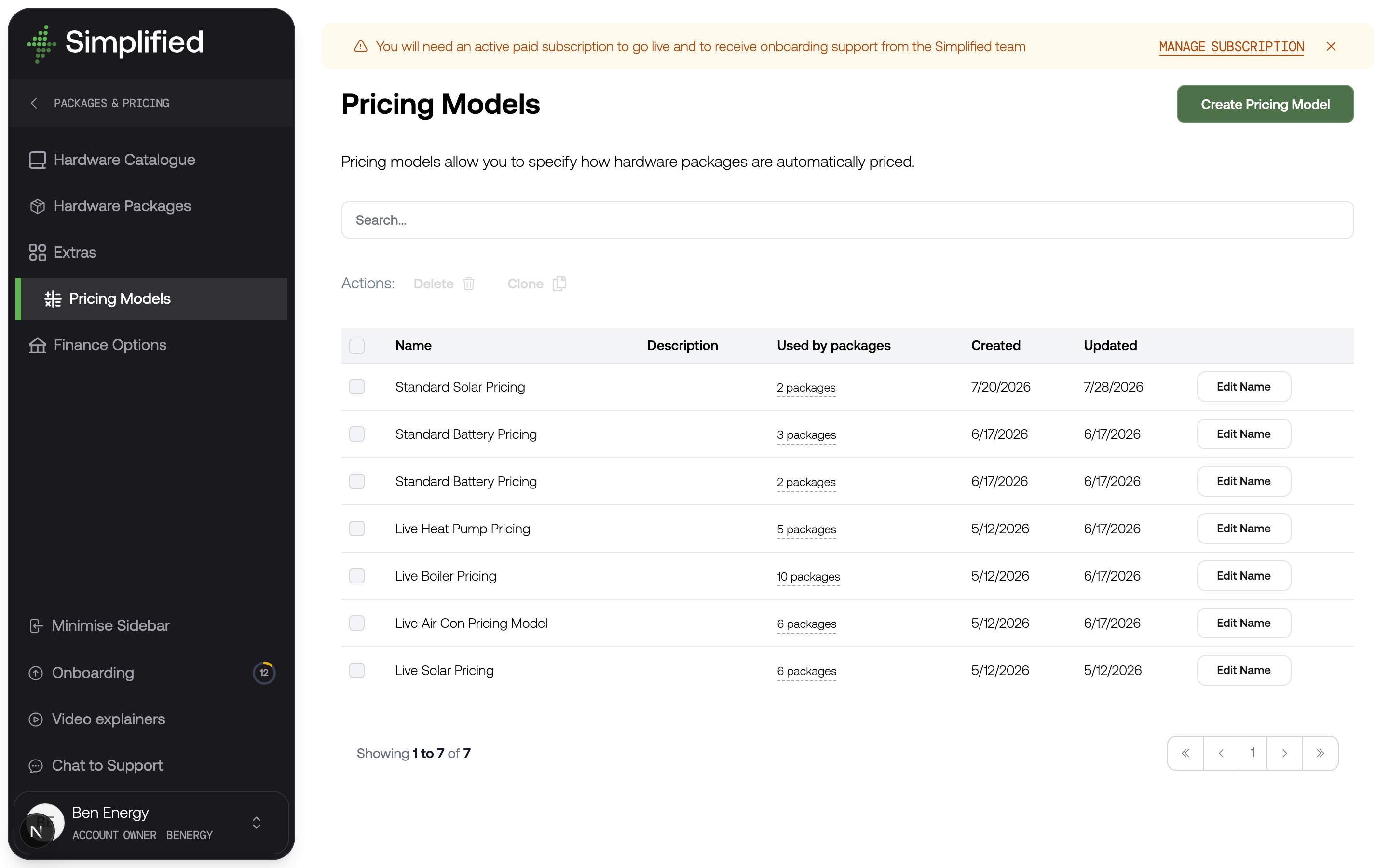
Pricing models
Pricing Models (Solar)
A pricing model is the recipe that turns a set of hardware into a price. It is where your labour, scaffolding, travel, overhead, and margin live.
Find them under Settings → Hardware, Packages & Pricing → Pricing Models.
Why it matters
Your selling prices are not stored anywhere in Simplified. There is no price list. Every price a customer sees is calculated at the moment they see it, from your current catalogue costs run through the pricing model attached to that package.
That is what makes instant quoting possible. Your customer designs a nineteen-panel array on a slate roof eleven miles from your depot, and no human has ever priced that exact job — but the model can, because it describes how you price rather than what you charge.
It also means a pricing model is a real commercial artefact. It encodes how your business makes money, so it deserves care and testing.
How a model is built
A model is made of blocks. Each block contributes to the total, and each contains formulas that can reference facts about the system being quoted.
There are five block types:
| Block type | What it is for |
|---|---|
| Cost Group | A set of related costs totalled together — a natural way to group, say, everything scaffolding-related. |
| Specific Cost | A single cost, fixed or calculated by formula. |
| Conditional Cost | A cost that only applies when a condition is met — a surcharge for a slate roof, or for jobs beyond a certain distance. |
| Lookup Table | A cost read from a table, for when pricing genuinely is banded rather than formulaic — scaffolding by storey count, for example. |
| Product surcharges | Extra cost for specific catalogue products. Each row is a fixed amount per unit or a percentage of that product’s catalogue cost, and an optional condition can limit when the whole block applies. |
Most models end up as a handful of cost groups with conditional costs for the situations that change the job.
Formulas and variables
Blocks use formulas, and formulas reference variables describing the system being quoted. There are over a hundred, covering things like:
- How many of each product type are in the system, and what they cost
- Panel counts split by roof material, and total roof edge length in linear metres
- Battery capacity, inverter power, heat pump output
- Boiler facts: whether it is a replacement, its fuel, where it sits
- Air conditioning room and outdoor unit counts
- Distance from the property to your nearest office
- The running total so far, so a block can apply a percentage to what came before
Formulas support the arithmetic you would expect plus functions including max, min, avg, sum, count, round, ceil, and floor, along with specialised helpers for counting a specific product code or counting air conditioning units above a given output.
The running total variable is the one worth knowing about, because it is how you add margin. A final block applying a percentage to the total so far gives you a markup that scales with job size without you calculating it per line.
Test before you ship
The model editor has a simulation panel. You set sample inputs — either by picking products and roofs as a customer would, or by setting the underlying variables directly — and see the price the model produces, broken down by block.
Use it. A pricing model is a formula that will quote real customers without review, and an error in one is expensive in a way that a typo in a description is not. Simulate the jobs at the edges of what you take on: your smallest viable install, your largest, the awkward one furthest away.
Attaching a model to a package
A model does nothing until it is attached. On each hardware package, under pricing, choose Pricing Model and select the model you want.
One model can serve many packages, which is usually what you want — your labour and overhead do not change because the customer picked the premium battery. Create a second model when the shape of your pricing genuinely differs, not merely the numbers.
Pricing models versus Pricing Calcs
Two similarly-named things, doing quite different jobs.
Pricing Models define how packages are priced in production. Change one and every future quote using it changes.
Pricing Calcs, under Pricing Calcs, are saved one-off calculations. You pick a model, set some inputs, and get a price — the fastest way to answer "what would this job cost?" without building a full quote. A calculation stores its result as a snapshot; it does not feed back into anything, and editing a model does not change calculations you saved earlier.
Put simply: models are configuration, calcs are a calculator.
Check it worked
- Open your model and use the simulation panel with inputs matching a job you have priced by hand recently.
- Compare the result to what you actually charged. Investigate any meaningful gap before going live.
- Attach the model to a package, then run a real quote through the quote tool and confirm the price matches your simulation for the same inputs.
What's next
- Hardware packages — attaching your model
- How quote tools work — where the price is shown