Build a boiler quote
Follow this through once and you will have a complete boiler quote: property details sized to the building, the current and new boiler described, a package priced, and a summary ready to send.
The Boiler Quote Tool is one long page. Sections unlock as you complete them and stay on screen, so you can scroll back to anything you have already answered. EPC is its own section. Current boiler and Keep kit only appear when they apply to the property, so a given quote can be shorter than the list below.
This is the same tool your customer uses on your website. Working through it yourself is also the fastest way to see what they will be asked.
Before you start
- Have the property address to hand. Nothing meaningful happens until the quote has one and a pin on the map.
- Boiler Quotes must appear in your Instant Quotes list. If it does not, boilers are not switched on for your account.
- At least one hardware package needs to be assigned to the tool, or you will reach the boilers section with nothing to choose.
Start with the address and the pin
The Boiler Quote Tool asks for the property before the quote exists.
- Go to Instant Quotes → Boiler Quotes.
- Click + Create new boiler quote. A dialog titled Create instant quote opens, with the quote type set to Boiler.
- Click Edit on the address. Type the address into Search for a UK address here, pick the property, and click Save address.
- Click Set pin. Drag the map so the marker sits over the property, then click Continue.
- Click Create.
You can also pick a project or a contact in that dialog. Choosing a project fills the address and the contact from the project. Choosing a contact fills the address only when the address is still empty.
The pin drives everything that follows: which building the tool looks up, whether an EPC can be found, and the property details seeded when you proceed without one.
Clicking Create creates the quote and opens it on EPC.
Get the pin right first time. You can change the address or move the pin later from Settings, but doing so clears everything from EPC onwards. On a quote you have already built out, that is most of the work.
Find your way around
The sidebar on the right lists every section that applies to this quote, with the quote's reference at the top and the price as it stands at the foot. Each entry summarises what you have answered — the EPC choice, the new boiler type, the package — so it doubles as a check on the quote so far. Click any entry to jump to that section. The PDF button below produces a printable version. On a narrow screen the sidebar becomes a bar across the top instead.
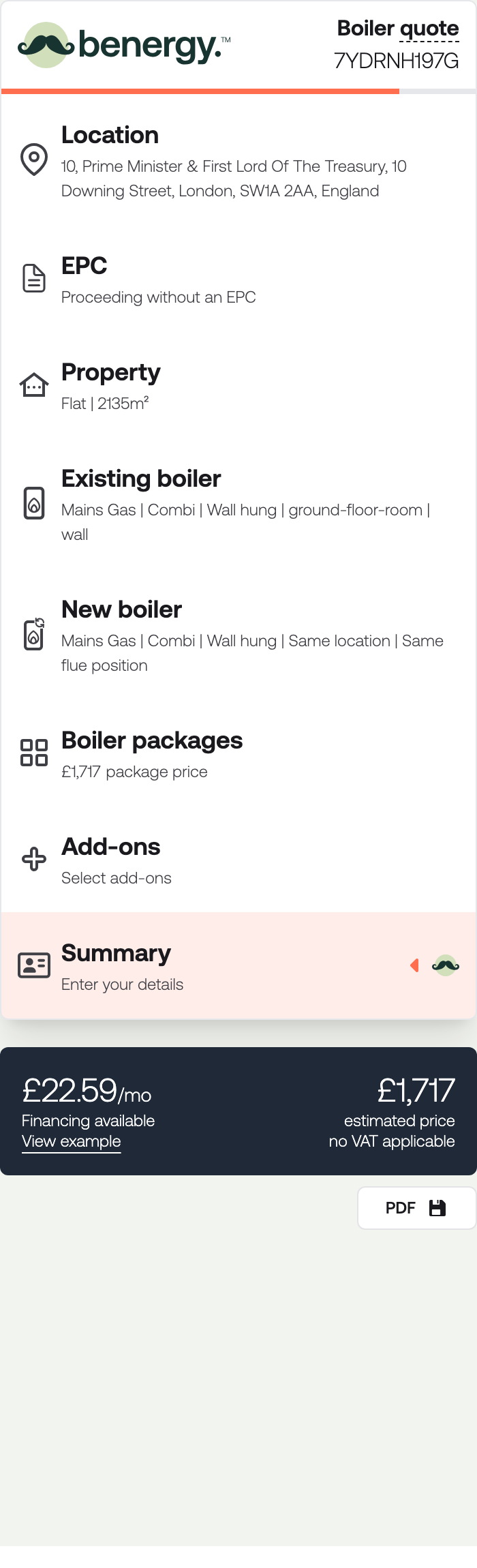
Along the top sits the row of controls you get in every quote tool, and your customer does not.

Settings is where you link the quote to a contact and correct the address or the pin. Share gives you the quote's web address and the email templates for sending it. Both are covered in Quoting on a customer's behalf. Under that row, Last updated opens the Activity log for the quote.
Every section ends with a Next step button, except Boilers, where choosing a package is the confirmation. Once you have clicked Next step the section shows Step complete, and if you go back and change something it offers Save changes instead. Nothing is lost if you stop part-way: the quote is saved as you go and waiting in your Instant Quotes list.
EPC
The tool looks for an Energy Performance Certificate for the address you pinned.
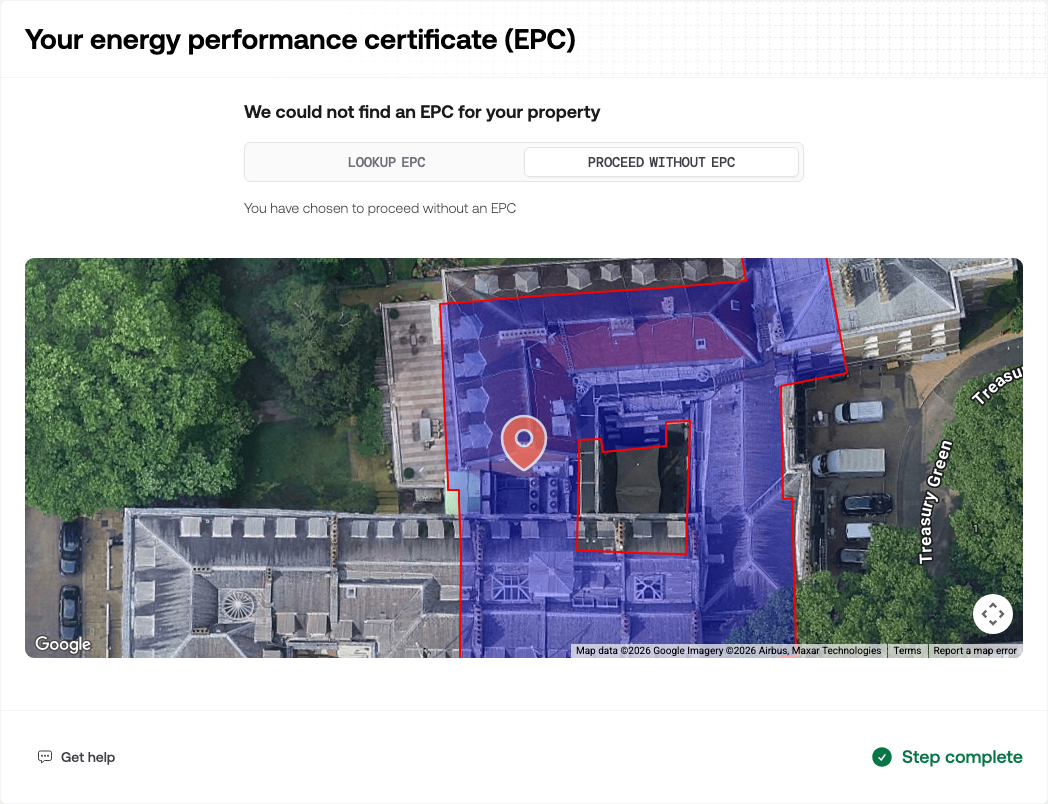
Two paths are offered:
- Lookup EPC — enter the certificate number if you have it, click Lookup, and confirm the certificate the tool finds.
- Proceed Without EPC — skip the certificate and let the tool seed property details from the building at the pin instead.
Use Lookup EPC when the customer has a valid certificate. Use Proceed Without EPC when there is no certificate yet but you still want a sized quote from the building footprint.
Click Next step.
Property
Review the property characteristics that drive heat loss and boiler sizing.
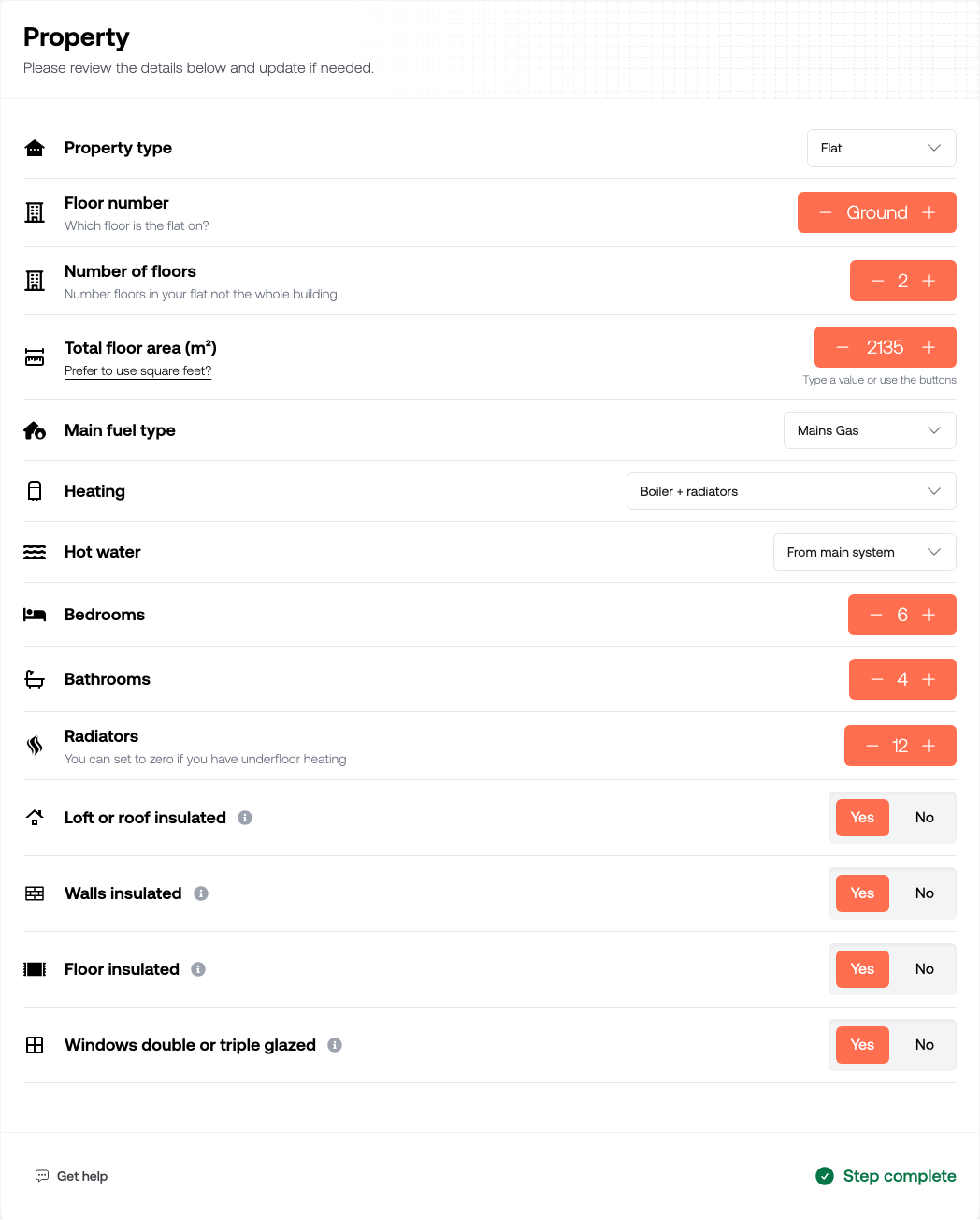
The fields start from the EPC if you looked one up, or from the building data at the pin if you proceeded without. Check them against what you know about the property — floor area, main fuel, and construction type all feed the sizing.
Click Next step.
Current boiler
This section appears when the property's main fuel is mains gas, oil, or LPG, and the heating is a boiler with radiators or underfloor heating. If the property is on a different fuel or heating type, the quote skips straight to New boiler.
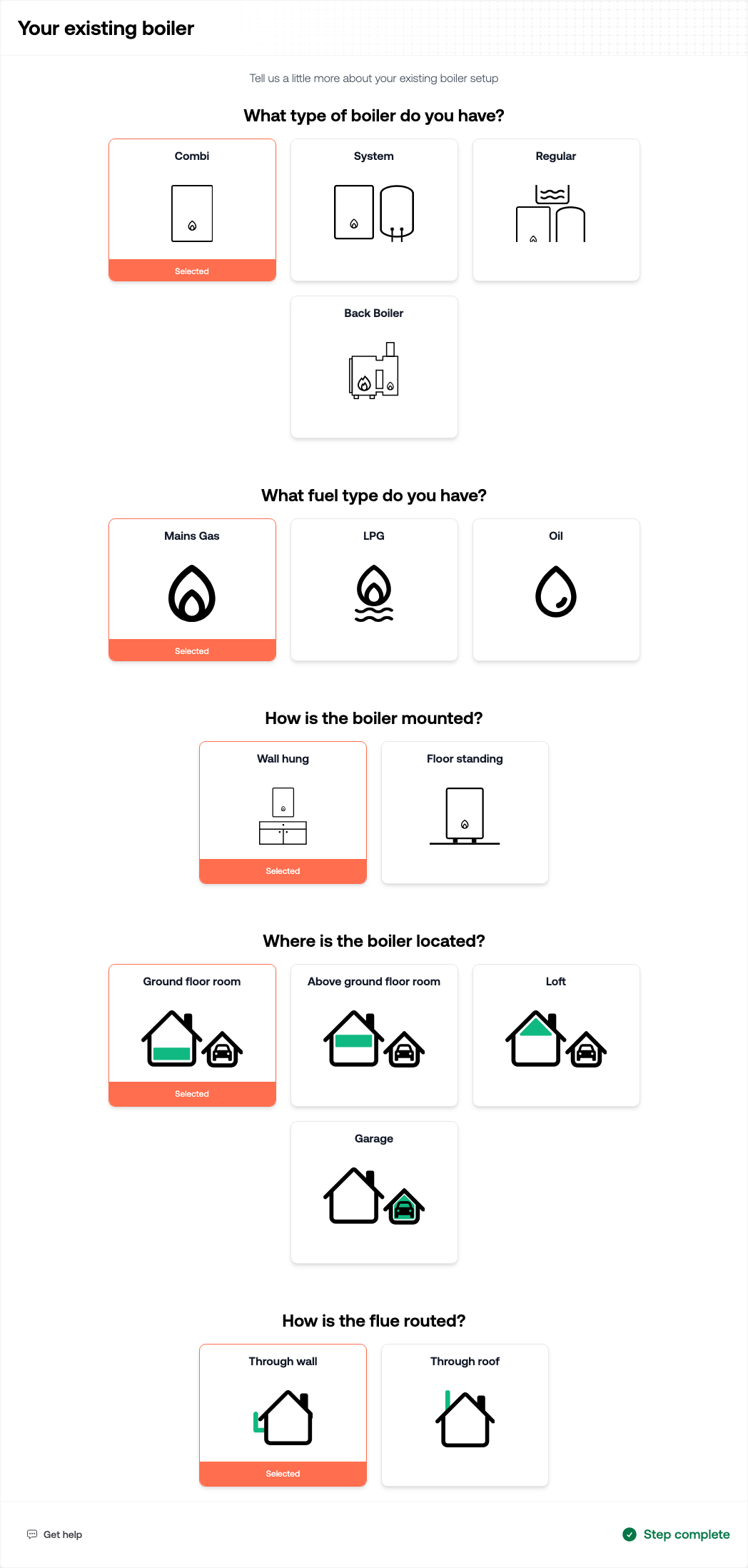
Answer what type of boiler they have (Combi, System, Regular, and Back Boiler if you have that option switched on), the fuel, and how it is mounted. For most setups the tool then asks where the boiler sits and how the flue is routed.
Click Next step.
New boiler
What they want installed.
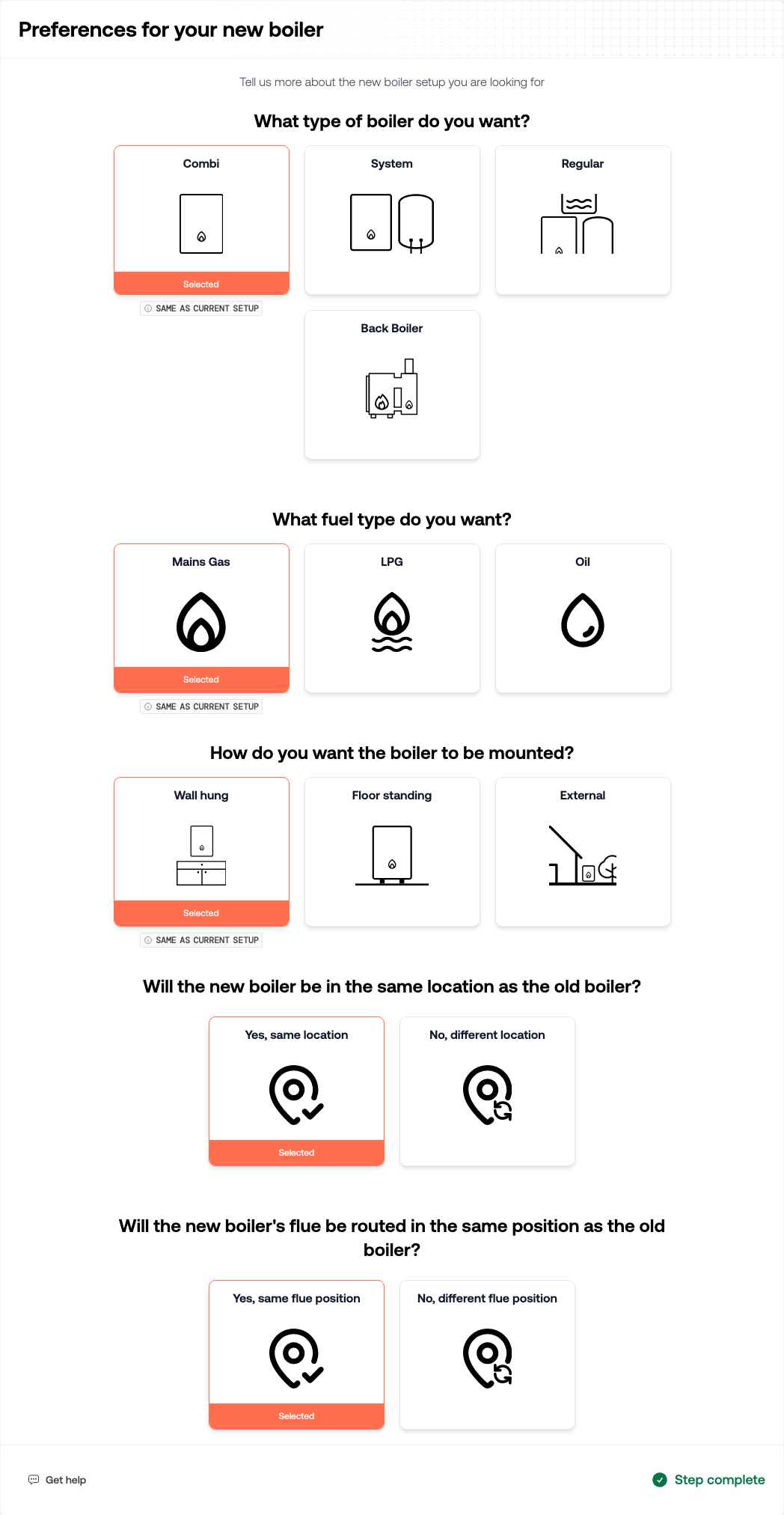
Answer the type, fuel, and mounting. If the current boiler's location was captured, the tool asks whether the new boiler stays in the same place and whether the flue follows the same route. Choosing a different location or flue shows the extra cost on each option.
The new type is saved as soon as type, fuel, and mounting are set, so those extra costs match the boiler they asked for. Location and flue choices wait for Next step.
Click Next step.
Keep kit
This section appears only on a like-for-like System or Regular replacement — the same system type as the current boiler. Combi jobs skip it.
The card is headed Which parts of your existing system would you like to keep? For a system boiler it asks about the hot water cylinder. For a regular boiler it also asks about the loft tank.
Click Next step.
Boilers
The card is headed Tailored hardware packages. Each card shows a boiler sized to the property, an estimated price, and a monthly figure if you offer finance. Details opens the full specification.
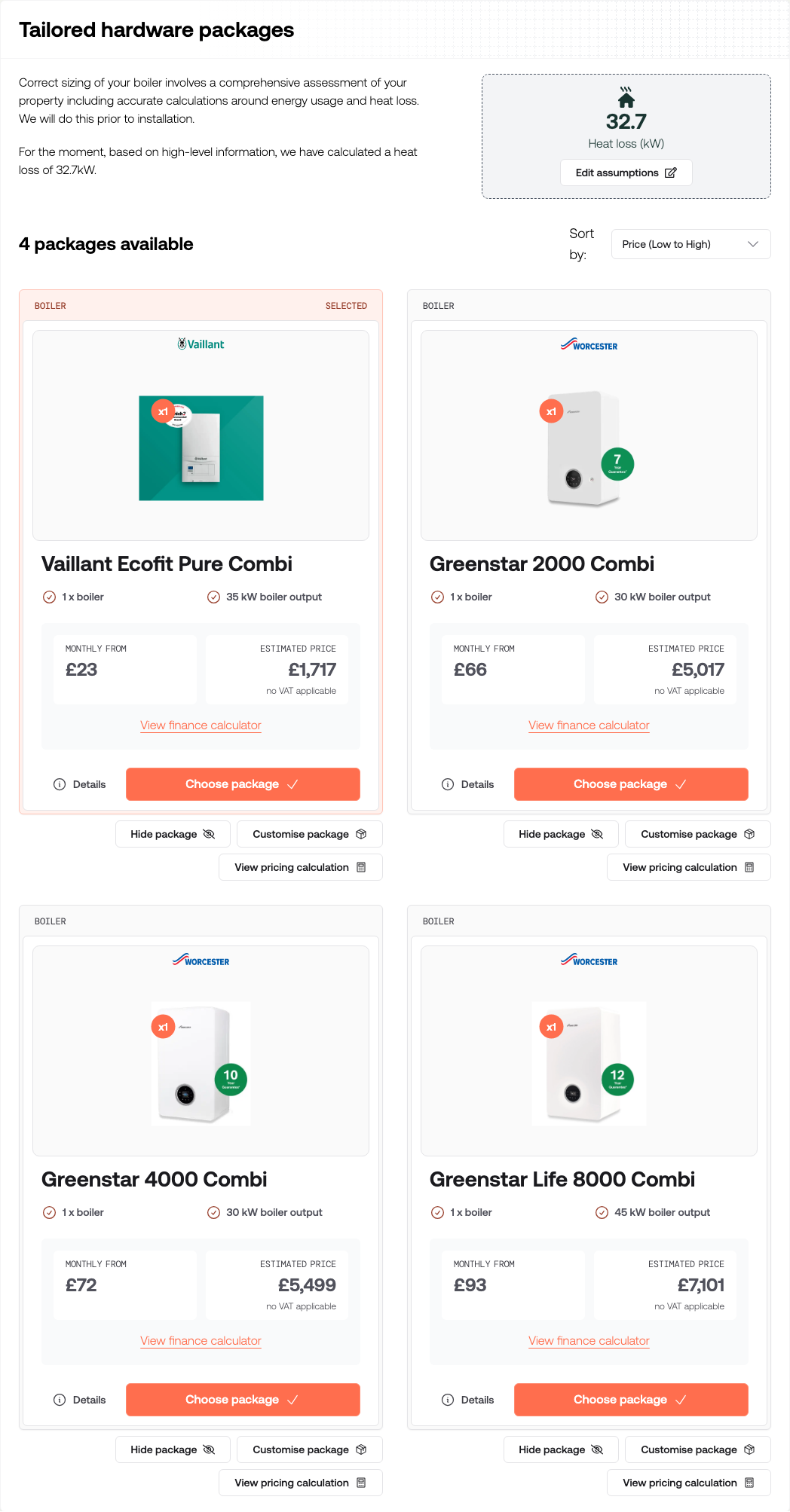
You can adjust the heat-loss assumptions used for sizing. If the new boiler is a System or Regular, you can also change the cylinder size.
Click Choose package on the one you want. That choice completes this section — there is no Next step button here.
While you are building the quote yourself, each card also has Hide package, Customise package, and View pricing calculation. Your customer does not see those controls.
Hide package takes that option off this quote. A 1 package hidden control then appears in the top bar; click it to open Restore hidden packages and put it back.
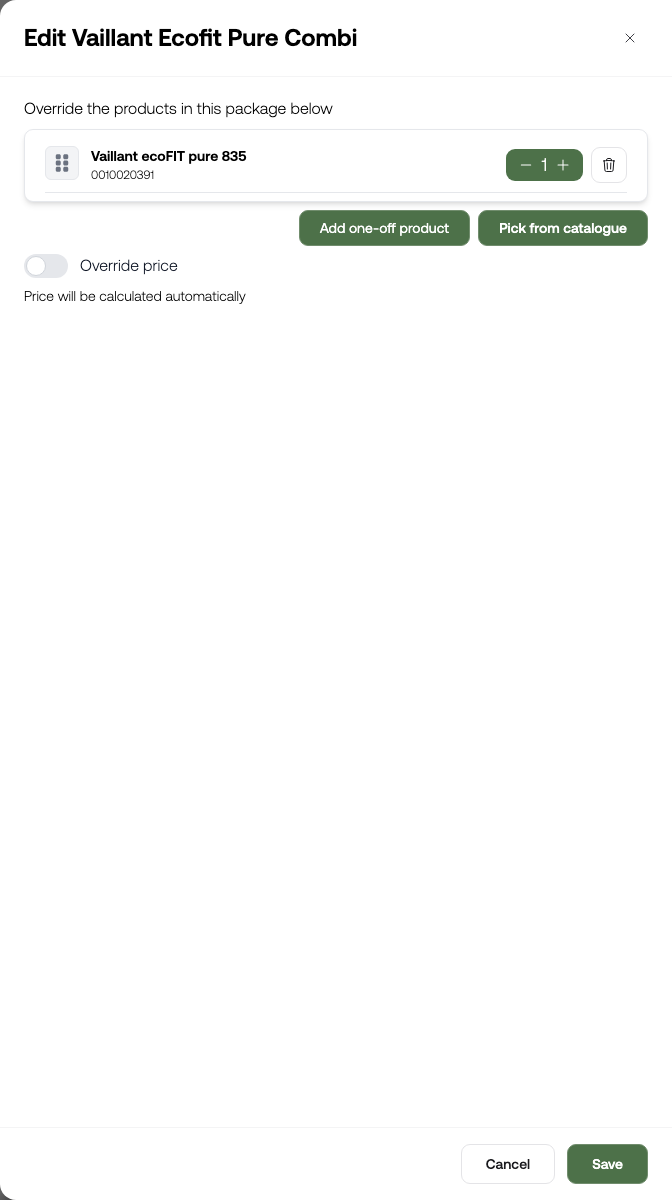
Customise package lets you change the products, quantities, and price for this quote only.
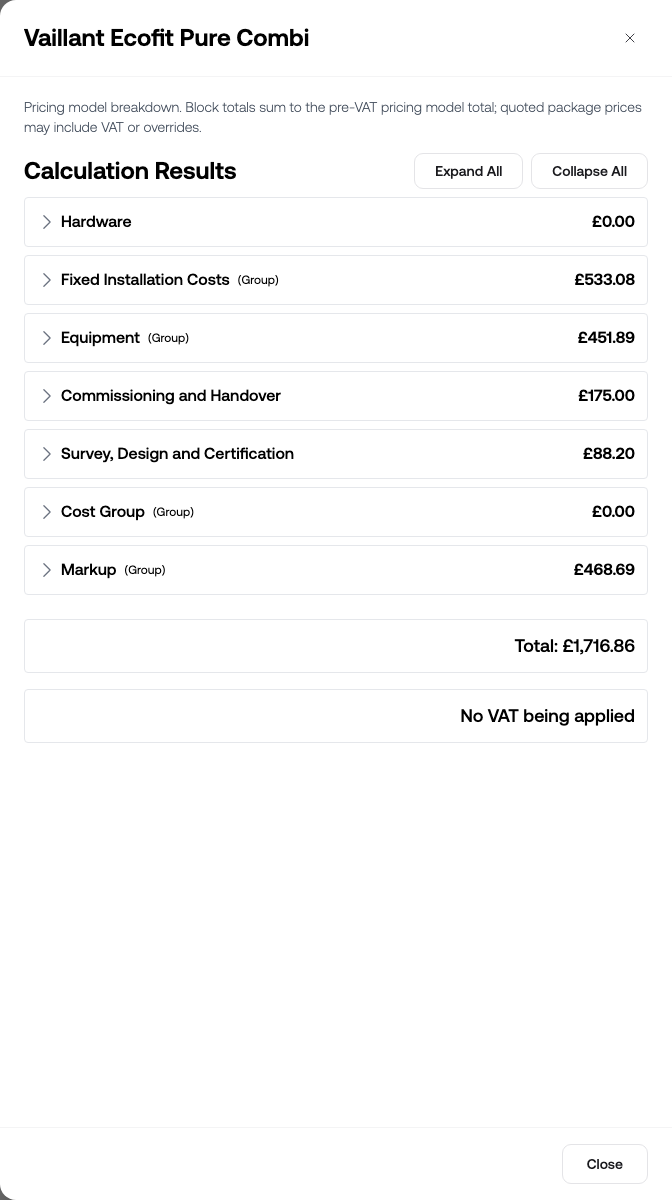
View pricing calculation shows how the estimated price was built.
If none of your packages match the setup they asked for, the tool explains that and offers a way to ask for help instead of a price.
Add-ons
If your account offers extras that apply to boiler quotes, they appear next under Additional options available for your system, and you confirm them as you would any other section. If it does not, the quote goes straight to the summary.
Summary
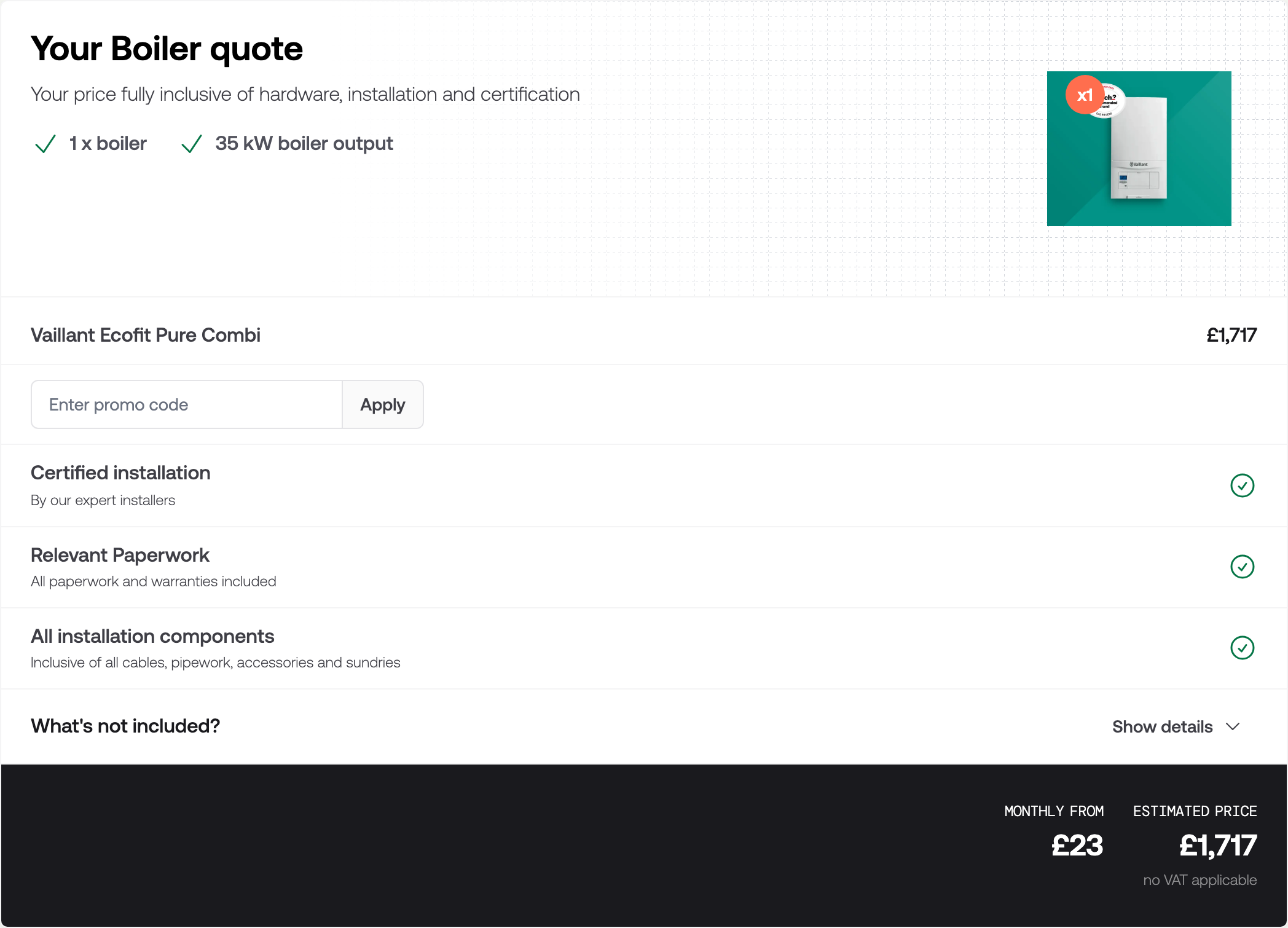
The last section is the quote as your customer will read it: the chosen package and any add-ons itemised with a price each, and What's included and What's not included lists if you configured them.
Below the price sits your call to action — contact details, terms, a signature, an appointment, or a deposit, depending on how the tool's acceptance is configured. You cannot accept on your customer's behalf; acceptance is switched off while you are working inside the quote, so they have to open the link themselves.
Send it to your customer
Click Settings to link the quote to a contact, then Share to copy the web address or send it by email. Both are covered step by step in Quoting on a customer's behalf.
Check it worked
- Look down the sidebar. Every section that applies has a summary line under it, and Summary is reachable.
- Open PDF in the sidebar and check the printable quote reads the way you would want it to arrive.
- Find the quote in Boiler Quotes. It carries the Created by Admin tag, and Has Contact Info once you have set a recipient.
- Open the shared web address in a private browser window. That is exactly what your customer sees.
Related
- What your customer sees — the same sections from their side
- Boiler Quote Tool settings — every configuration tab
- Quoting on a customer's behalf — setting a recipient, sharing, and emailing a quote
- Find and follow up on instant quotes — working the list once the quote is out